Picture

Picture
Showing posts with label Hints and Tips. Show all posts
0

Friday Finds – 07/17/09

Friday, July 17, 2009

A weekly collection of things I’ve run across that may be of interest to you.

Article  10 Tips for Taking Notes, by Maeve Maddox – Great suggestions for taking notes and meeting minutes.

Article  12 Tips for Making Small Talk, from CareerBuilder – According to a study of Stanford University School of Business MBAs ten years after graduation, their success did not correlate to their GPAs.  Instead, the ability to connect and converse with others had an impact on their success.  This article shares some great tips from Debra Fine, author of The Fine Art of Small Talk.

0

Quick Tip for LinkedIn: Websites & Feeds

Thursday, July 2, 2009

On Tuesday I posted a quick tip for customizing your website listing in LinkedIn.  This tip is a follow-on about making the most of the website you list.

BlogLink is a LinkedIn application that pulls in feeds from your connection automatically, so you get to see what they are up to in one spot.  And, if you set up your website listing properly, your data will filter into your connections BlogLink feeds.  So, how does this all work?  It’s quite simple, just follow the steps below.

Stay On Top of Your Connections

To keep up with what your connections are doing, simply navigate the the BlogLink application and add it.  Once you’ve added it, you then have the option to display it on your profile and/or your homepage.  When you add it to your profile, it will display the four most recent items of your feed in your LI profile.  Adding BlogLink to your homepage, you have the ability to see your connections feeds (as well as your own) right from your homepage.

5

What’s nice about this is that your connections do not have to be using BlogLink in order for you to get their feeds.  As long as they have a blog in their list of websites, they will show up in your feed.

Setting Up Your Feeds

The really neat thing about this is that all you have to do is make sure your blog is listed in your profile’s website listing.  What even cooler is that BlogLink, although primarily focused on blogs, will also pull other feeds such as Twitter.  As you can see below, I have this blog and my Twitter profile listed as websites.  BlogLink pulls both of these feeds automatically, which will appear on your LI profile as well as the feed of any of your connections using the application.

4

How Does All of This Look?

This first image below show what the BlogLink feed looks like on your profile.  This is what people would see when they visit your LI profile, if you choose to have it displayed.

6

This image shows you how the feed looks from your homepage.  Here you can view your connections’ feeds, or click on the By Me tab to see your own feeds.  Conversely, when a connection adds BlogLink you will appear in their feeds.

8 


For more information about BlogLink, including FAQs, visit their website.

Don’t forget to read my related post Quick Tip for LinkedIn: Customizing Your Website Listing if you haven’t already.  It provides information on setting up your website listing for your LI profile.

0

Quick Tip for LinkedIn: Customizing Your Website Listing

Tuesday, June 30, 2009

I just found a neat little trick in LinkedIn that I thought I’d share with you.

When you add your website(s) to your profile, you have the option to “customize” the title of the link.  I’m not sure if this was available from the beginning, as I don’t remember seeing it before.  But when I went to add this blog to my list, I saw the option for “other” and learned what you can do with it.

When you list your website(s), you have the option to choose from the following:

  • My Website
  • My Company
  • My Blog
  • My RSS Feed
  • My Portfolio
  • Other

1

Using any of the first five options, displays it on your profile page with that title.

2

But, if you choose “Other” you have the option to put in a title, therefore customizing it to suit your needs.

3

Now it will display the title you chose instead of the default (e.g., “My Website”).

4

Pretty neat!  Now head over to LinkedIn and update your profile.

P.S. I have another tip to go along with this one.  Stay tuned!

0

Email Etiquette: A Refresher

Friday, June 12, 2009

MouseComputer The advent of instant messaging, texting, and Twittering, has brought with it some horribly informal communication habits.  More and more, these bad habits are creeping into our emails.  It seems that "how r u" is acceptable in today's emails.  But is it truly acceptable?  Perhaps on a personal level, but professionally speaking, no, it's not acceptable.  Let's remind ourselves of some dos and don'ts when it comes to business-related email.

DO write professionally, even when conversing with an intimate colleague.  You never know who might see it!

DO keep it short and simple.  Enough said!

DO respond promptly to questions and requests, even if it's to say that you don't know or that you need more time.  It's common courtesy.

DO use the Bcc field for mass-mailings.  This respects everyone's privacy.

DO be cautious with your tone.  Without the non-verbal cues you get in face-to-face conversations, people might be offended if you come off sounding snippy or disrespectful even if you didn’t intent to.

DO send attachments only when appropriate.  Consider compressing or "zipping" files to reduce download time.

DO craft a subject line that quickly states the purpose of your email.  Simply saying "Hi" might not get your email answered right away.

DON'T continue to reply to conversations that have ended.  For example, when someone thanks you leave it at that; you don't need to reply with "no problem" or the like.

DON'T send/forward chain letters, spam, or other inappropriate material.

DON'T write your entire email in ALL-CAPS.  It's the Internet-way of shouting.

DON'T use "High Importance," "Urgent," etc. unless absolutely necessary.

DO however, use "Low Importance" when appropriate.  This lets the recipient know they can pass it over and review it at a more convenient time.

DO use a greeting and signature.  This keeps your email a little more personable than just simply starting your message.

DON'T format your messages with "stationary" backgrounds.  Depending on the email client, the recipient may have difficulty opening, reading, or replying.

DON'T use delivery notifications or "Read Receipts," except on the rare occasion it's necessary.


Do you have some additional dos and don’ts?  Post a comment and let me know!

0

7 Fortune 500 Companies Using Social Media Effectively

Wednesday, June 10, 2009

Learn how some Fortune 500 companies are leveraging social media for marketing and customer service.

Businesses big and small are taking to social media as another means of reaching their customers and prospects.  For many, it’s about two-way communication.  With social media, they are not only able to push news and information, but have the opportunity to interact with their customers and even provide a different level of customer service. 

Following are seven Fortune 500 companies that are effectively using social media to inform and interact with their customers.  Follow and study them to generate your own ideas for using social media in your overall marketing and customer service plans.

1.  Home Depot  Home Depot is using Twitter to inform its followers about products and events.  In addition, they have in many cases, helped customers resolve issues.  Home Depot currently has 8,300+ followers.

2.  Pepsi  Pepsi is all over the social media world.  They are on Twitter with a current following of 3,500+.  Here they offer news about products and events.  They also converse with customers and followers, even on the day-to-day things.  You can also find Pepsi on Facebook.  With nearly 200,000 fans, they communicate news about products and events.  Pepsi even has their own YouTube channel, where they share a variety of videos.

3.  Allstate  Allstate currently has 1,100+ followers on Twitter.  They are using Twitter to interact with their customers, as well as help customers resolve issues.

4.  Target  With 7,200+ followers on Twitter, Target is interacting with their customers, as well as helping customer resolve issues.

5.  Kohl’s  Kohl’s is very new to the social media scene.  Even though they just joined Twitter in late April 2009, they have 382 followers and are conversing with their customers, even on the day-to-day things.  Kohl’s is also on Facebook.  Although it appears they have had a presence there for awhile, they are just now beginning to use it to interact with their 5,900 fans.  They are also using Facebook to share information about products, sales, and events.

6.  Southwest Airlines  SWA uses Twitter to interact with its 31,900+ followers, even sharing restaurant suggestions for travelers.  On Facebook, SWA shares news about services and events with its 68,000+ fans.

7.  Starbucks  Starbucks has 206,000+ followers on Twitter.  They use Twitter to interact with customers, as well as help their customers resolve issues.  On Facebook, they probably have one of the biggest group of followers totaling 1.7 million.  Starbucks uses Facebook to share news about products and events and provide relevant information of interests to its fans.


Further Reading

0

Facebook: Friend or Associate?

Thursday, May 28, 2009

More and more, people are beginning to realize the benefit of using Facebook as a networking and marketing tool for their business.  But many people also want to use this social media tool to be, well, social with family and friends.  So how can you effectively utilize Facebook for both personal and professional use?  The answer is quite simple:  filters.

When Facebook redesigned the look and feel of the site in March 2009, more user-control over various elements came with it.  The ability to granularly decide who sees what was finally possible. 

So how can you take advantage of this?  To start, you must first have your friends arranged into lists.  Then, to control the content those groups see, you need to change the privacy setting for each Facebook application.  Likewise, you can filter whose statuses you see.

Friend Lists

I have six different lists:  Following, Friends, Family, Professional, Genealogy, and Writing.  Three of these categorize my friends by type, while two are reserved for friends that share special interests; the “Following” list I will explain later.  You might start out with the basic three (friends, family, and professional) as you can always add more lists later.

To create a Friend list:

  1. Click on the Friends button in the top navigation bar.
  2. Click the Create New List button.
  3. Enter a name for the list.
  4. Choose the friends to include in that list.

Tip:  When adding a friend or accepting a request, place them in the appropriate lists.

addlist

Application Privacy Settings

Privacy settings for applications differ from that of your overall account.  Essentially, you can dictate per application who can see what.  For example, let’s say you use Notes to share personal information that perhaps you wouldn’t want your professional contacts to see.  In this case, you would set the Notes settings to allow only friends and family to view your notes.

To change application settings:

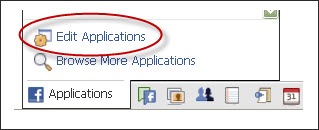
  1. Go to the Applications menu in the bottom toolbar.
  2. Choose Edit Applications.
    editapp1
  3. Change the Privacy Settings for each of the applications you want to control.
    1. Click the Edit Settings link.
    2. Under the Profile tab, change Privacy Settings to Customize.
    3. Choose Some Friends.
    4. Enter the list name(s) of those you want to give permission to.

Filter Who You See

When you have a lot of Facebook friends, it can be cumbersome to keep up on everything.  This is where the friend lists become even more invaluable.

As I mentioned earlier, I have a list called Following.  In that list, I place the people that I really want to keep track of.  It’s a mixture of family, friends, and professional contacts.  Instead of the default News Feed, I choose this list to display when I come to my Facebook home page.  Now when I come to Facebook, it only shows me statuses for the people in that list particular list.  I can check out the statuses of other friends by clicking on another list in the menu on the left.

You can change your home page to display a list of your choosing by placing the desired list at the top.

list 

Tip:  You can also filter out certain applications.  If you don’t want to see who’s Superpokin’ who, hover over the top-right corner of the status and chose the appropriate action from the Hide menu that appears.

There you have it.  A way to keep your personal and professional life separate on Facebook and to see only what you want to see when you want to see it.

0

SnagIt: Using File Properties

Monday, May 18, 2009

Want to know where you got a screen capture from, or perhaps when you created it?  In SnagIT, it’s a simple as “right-click.”

Simply locate the thumbnail in either the Library or the Capture Tray, right-click on it, and select Properties.

1

The Details window shows you the application of where the capture originated, the file name, and file type.  But the neat thing is that it displays when it was created and modified, the website you obtained it from, and where you stored it.  Clicking on the Websites link will take you directly to the source, while clicking on the Location link will open the folder of where it’s stored locally.

detailsSS

  © Copyright 2008~2009. All rights reserved.

  © Blogger template 'Minimalist E' by Ourblogtemplates.com 2008

  © Header image credit: adapted from Chor Ip.

Back to TOP